Breaking

Showing posts with label Window tricks. Show all posts

Wednesday, 25 March 2020

March 25, 2020

Windows Defender on Window 10 temporarily


1.Open windows defender security center

2.Go to Virus & threat protection

3.Click the Virus & threat protection settings option

4. Turn off the Real-time protection toggle switch


That’s all, Windows Defender is turned off temporarily


Wednesday, 18 March 2020

March 18, 2020

You can block any website on your computer!

Sometimes you wonder to block some websites on your computer for miscellaneous reasons. Today, I'll teach you how to do this in a couple of minutes without using any specialized software.

Follow the following steps with me and block any site in a few simple clicks. 

1. Click Start > All Programs > Accessories > Command Prompt.

2. Open Command Prompt as Administrator, This will open a DOS command line window.

3. Type: notepad C:/Windows/System32/drivers/etc/hosts

4. Locate the line 127.0.0.1 localhost

5. To block the website facebook.com, just add this text under 127.0.0.1 localhost: as shown below in the example.

Example:

127.0.0.1 localhost
127.0.0.1 www.facebook.com
127.0.0.1 www.chess.com

In the same way, you can add as many websites on the list as you want. Don't forget to prefix site's name with 127.0.0.1

6. Now save the file and windows will block connection to the site which you have added in the host file.

All done!

So, this was an easy method on how to block a website on your own PC. Thanks for reading.

Tuesday, 17 March 2020

March 17, 2020

Disable Windows Defender on Windows 10 - Turn Off Antivirus

How to disable Windows Defender on Windows 10 temporarily using the Security center


Second method how to disable Windows Defender on Windows 10 permanently using local group policy 


Go to virus and threat protection 


Click the virus and threat protection set option Okay, now turn off the real-time protection toggle switch Windows Defender is turned off temporarily.


So the next time you restart your computer Windows, Defender antivirus will re-enable automatically Okay, let's turn it back on And now let's disable Windows Defender permanently using local group policy.


As you see Windows Defender is on And if you right-click on any folder we can see the scan icon Okay, let's disable it go to search box and type Gpedit MSC Or press Windows key + R on your keyboard and type command there.

The local group policy editor In computer configuration Double-click on the administrator

Then go to windows components Scroll down and find Windows Defender antivirus Right-click on turn off Windows Defender antivirus and click Edit Select the Enabled option to disable Windows Defender Okay, then restart your computer We done, let's check it As you see, Windows Defender Antivirus is turned off successfully.


Monday, 16 March 2020

March 16, 2020

Command Prompt Secrets and Tricks in Windows

Command Prompt Secrets and Tricks in Windows

Probably says the path of the current folder. You're in like C And then either the user directory or maybe system 32 if you're running as an administrator, you can customize Any of that text to say whatever you want and you do this for example by typing in the prompt command so you prompt and then whatever text you want and now that will be the Text that shows up before whatever command you type in so you can type in prompt Hello, and now it will say hello. And then you type the commands after that having just some random word.

There is not going to be very useful so you can actually use the command prompt and then space/ ? to show special codes that you can use to not just have words but also dynamic information there as well such as a Timestamp or the version of Windows and stuff like that So for example, maybe we don't want it to just show the file path. But we also want to have it as a timestamp So if you're looking at a log later down the road, you know exactly when these commands are run So to do this you can look at the special codes and what we would want to type in is Prompt to say we're gonna change this then we would use the command dollar sign T, which is the current timestamp Code and then we're gonna do a space and then dollar sign B as a vertical line and we're just kind of formatting at this Point another space and then we're gonna use the dollar sign P command Which will show the current path just like it usually does and then we want to put that right arrow caret thing.


So we're gonna use the dollar sign G command to show the greater sign so you can see after we do that it now shows the Timestamp and then the divider line and then the file path like it did before so a little bit more useful also If you ever mess it up and you want to go back you can simply revert to the default by typing and prompt and nothing after that And it will automatically go back so you could also use this as some sort of prank if you want to mess with your friends You could have it's a catastrophic error or something like that And then they won't know what's wrong with it Might be kind of funny as long as you know how to put it back one thing to keep in mind though is that when you use this command it will reset once you restart the command prompt if you wanted to have that by default and always show your Customized one when you start command prompt you have to do a quick Registry edit now. 

I'm gonna show you how to do that but as usual, if you are not experienced with the registry editor at all be very careful and maybe even avoid this trick because Messing with that registry and deleting something could literally ruin your entire version of Windows and you'll have to reinstall it So just be very careful here. So what you do is you open up the registry editor and you need to find the key That's under computer H key current user then software then Microsoft and then command Processor now on the right side after you enter that little folder you're going to right-click You're gonna create new and then string value and you want to name this autorun and after you create that you're going to right-click on that key that you just made the autorun one and click modify and then where it says value data, you're gonna type in whatever command you want to autorun as Command prompt starts up so in this case If we want the prompt command to always have a certain format that we customized like the one we just made.

All we have to do is paste in that timestamp Prompt code that we created before and now you can see when we start up command prompt it now Automatically shows that customized prompt there and this doesn't just have to be the prompt command You could have this as any command you want to run automatically when you start command prompt, so use it wisely.

Saturday, 15 February 2020

February 15, 2020

Microsoft Windows vs Linux OS Battle

Is Linux Finally Beating Windows?

You have all used a personal computer that runs the Windows operating system, but how many of you have actually used Linux?

If you look at the market share of operating systems for PCs over the last few years you will see that Windows totally dominates the market. It's been that way pretty much since Windows came on the scene in 1985.

The word Microsoft became a household name and synonymous with both home computers and operating systems. In January 2019, Windows had just over an 88 percent market share. Apple's Mac operating system is next, with just over 9 percent of the share.


After that comes Linux, with just a tiny share. What might surprise you, though, is perhaps this shouldn't really be the case. We are not going to bother explaining to you what the Windows OS is, that would be almost condescending. You have all used it, and many of you probably loved the XP version, hated Vista and Windows ME and probably were not too fond of Windows 8. When Microsoft released Windows 10 it said this was the last in the line of totally new versions, it would be updated forevermore.

The point is, we have likely all gotten used to Windows. Using Windows is as familiar to most people as opening a window in your home. It's that familiarity, and of course, the fact that it comes pre-installed on many PCs you buy, that prevents some people from crossing over the scary waters of OS change towards the little-known island of Linux.

For those of you who don't know what Linux is, you can actually just go to the Linux official website and the company answers that question for you. We have done the reading, so we will paraphrase what the company said.

First of all, Linux tells us you probably do use Linux but just don't know about it. This is just one sentence from its grand opening paragraph.

It's in your phones, in your cars, in your refrigerators, your Roku devices. It runs most of the Internet, the supercomputers making scientific breakthroughs, and the world's stock exchanges.it's also just a regular operating system for your PC.

The operating system, which most people just initialize to OS, is like the brain of the machine. Without it, the machine is pretty much useless. We don't need to tell you that these systems can be very complex and we imagine most of you wouldn't be confident enough to say you know exactly everything you can do with your Windows OS. That's one reason people stick with what they know because moving to a different OS is like finding yourself in a totally new environment. you can install Linux on your computer for nothing. It is absolutely free.

Installing a Linux server is also free. This is what you need when you have a network of people that need serving. It isn't free if you need Windows server OS though. Linux makes a big deal about this, and rightly so. Who doesn't like it?Linux also says its server is so easy to run that anyone could do it. 

You can read tech websites where the real computer nerds talk about this, and you will see people saying that Linux really should be ascending faster than it is. But actually, one developer said what we have just said, in that Linux is just too fragmented. He also just said the obvious in that it just hasn't gained momentum. Microsoft has a virtually unstoppable PR machine. 


This is not to say, however, that Windows is bad. Not at all, and Windows 10 has been for the most part very well received. And as we said at the beginning, Windows has been part of people's lives for many years. People know what they are working with, and even though Linux offers similar alternatives a lot of people don't want to make the effort to change. There is also the case that for a long time people haven't gone over to Linux because they thought it was only for people who know a lot about computers. That using it might take some amount of computer savvy.

Thursday, 6 February 2020

February 06, 2020

Microsoft Word launched or loaded


Loading Microsoft Word

Microsoft Word is loaded or started by using different different ways. But the common way to start the Microsoft Word is by Using the Start Menu.

 
Following the procedure to start Microsoft Word:

  • Click the Start Button to display Start menu.
  • Select the program option from Start menu, a sub-menu will appear.
  • point the Microsoft Word in the Programs menu and then click the mouse.

When Microsoft Word is successfully loaded, a window appears on the screen with a blank document. The window has various elements that are used for different purposes during creating and editing documents. the Microsoft Word window with different elements is shown is figure below.

Microsoft Word Document

Tuesday, 4 February 2020

February 04, 2020

Protect the computer from viruses

Safeguards Against Viruses

You can make safe your computer from getting infected by a virus using following ways:

1. Install latest program on the computer. You Should Periodically update antivirus.

2. You should minimize the data transfer between computers through the use of floppy disks and            other removable storage media.

3. The removable storage media such as USB drive or floppy disk should be scanned for viruses              before use.
   
4. Never open an E-mail received from unknown persons.

5. While using the Internet, do not download freeware and shareware program without first checking it for virus.

6. Pirated software should not be installed on computer. Always use licensed software.

7. You should always keep backup of your data. The backup will be useful if a virus deletes your data or modifies it.

Monday, 20 January 2020

January 20, 2020

Windows Settings

  Windows Settings You Should Change Now!

Even if you have been using Windows forever, there are probably a lot of settings that you never realized were on by default, and should probably change.

These might be settings for privacy, convenience, or just usefulness in general.

So we're going to go over a bunch of settings in Windows, specifically Windows 10, that I think you should change right off the bat, including stuff you should disable, and even features that are good but are not enabled by default. And I believe there are about 15 of them, so you'll hopefully learn at least a couple of new ones.

Setting #1
Let's head to the Windows Update settings.

To get to the main settings Window, 

  • You just click the start menu
  • Then click the gear
  • Go to Update Security
  • Then look for Advanced Options 
  • Then click Choose how updates are delivered
Here you'll want to make sure the setting at the bottom is set to PCs on my local network and NOT the other one with PCs on the internet. What that would do is download parts of updates from other people who have the update, to supposedly make the downloads faster. But it would also send parts of your updates to other people, using up bandwidth. On your local network, it doesn't matter, but you can disable this altogether by switching the toggle above to off.

Setting #2
Change some WiFi settings

  • Now in the main settings window
  • Go to Network & Internet, 
  • Then the Wi-Fi tab.
  • Under WiFi services, you'll see two options talking about suggested open hotspots. I would disable both of those.
Suggested hotspots are supposed to be hotspots that Microsoft has deemed and this would allow your computer to connect to them automatically. But open hotspots are inherently insecure, so you never want your computer to connect to any network without asking you first, its just ridiculous. Below are settings for Hotspot 2.0 which is a relatively new technology, but you can leave that on.

Settings #3
Bunch of privacy settings 

  • So start out going to Settings,
  •  Then Privacy.
  • We'll start in this general tab.
  • You'll want to uncheck the first box, and probably the second box as well.
These allow websites and apps to track you based on a unique Advertiser ID to learn more about you and show you more relevant ads.

The next one about your language list might not matter, but I just have it disabled. If you use a language other than English, maybe keep that enabled.

The third setting is also something you may or may not want to disable. It keeps track of which programs you launch most frequently, so you can have the most used list in the start menu. If you don't care about that, disable it.

The next tab we're going to look at is Speech, Inking, and Typing. This feature keeps a record of everything you type or say to Cortana, the virtual assistant, and uses it to get to know you and make better suggestions. For those of you who don't use Cortana, it's something you want to disable, so just turn that off.

Sunday, 12 January 2020

January 12, 2020

10 Secret Combinations on Your Keyboard

10 Secret Combinations on Your Keyboard Have you ever thought how many secrets are hidden inside of your computer?

Only 20 years ago, the most advanced computers had a hard drive capacity of 320 Megabytes, and it was considered as a great break through in personal computers technology at that time.

Since then a lot of things have changed.We almost don't use mice anymore and prefer touch pads and touch screens.

But a keyboard is the only thing that seems to be unchanged.Here as a list of all the hotkey combinations that will certainly come in handy.No matter Windows or OS X user you are.

Lets start with the Window keyboard and its 10 secret combinations.
First, find a Windows key.
Usually, it's located on the lower row of the keyboard.
To the left of the space bar.Found it?Great.This button will be involved in all the following combinations.

So, just keep your finger on it. OK, lets go.
Combination #1 
If you just press Window key, it will open the Start Menu.In Windows 8.1 it will open the previous window.

Combination #2 

Press Window key followed by A.In Windows 10 it will open the Action Centre. The Action Centre gives you quick access to your computer settings.

Combination #3 
The combination of Window key and B key selects the first icon in the Notification Area.You can then switch between the icons using the arrow keys.

Combination #4 
Win key+Ctrl key followed by B.This combination switches to a program indicating a new message in the Notification Area.

Combination #5 
Press Window key and C keys.It will show the Charm Bar in Windows 8 and 8.1 versions.In Windows 10 it opens Cortana but only if you're using a supported language.For English, it should work just fine.

Combination #6 
This one is beneficial if you want to minimize all the opened windows immediately.Just press Window key followed by D key, and you will see your desktop in a split of a second.

Combination #7 
It provides Quick access to Windows Explorer.For that press Window key and E keys together.Easy as that.In Windows 10 it also opens the Quick Launch by default.

Combination #8 
Press Window key and F key pressed together opens and Find files and folders.In Windows 10 it opens Feedback hub.

Combination #9 
Three keys: Window key+Ctrl+F opens Find computers
Combination #10
Window key+G key It works differently in different Windows versions.In Window 7 and Vista it brings all the gadgets to the foreground that are in process at the moment.In Windows 10 it opens the Game bar.

Thursday, 9 January 2020

January 09, 2020

Calculations On Command Prompt


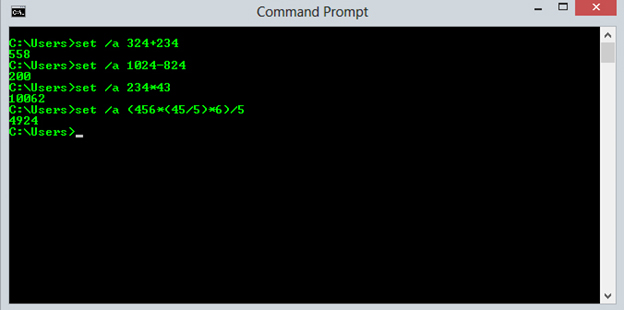
In this tutorial I will show you  how to use CMD as a Calculator. This is one of the very simple CMD tricks, just follow these steps and you also able to do calculation with CMD.

The command processor CMD.EXE comes with a mini-calculator that can perform simple arithmetic on 32-bit signed integers.

Step 1 : Open CMD, then write the following code.


For addition  


Example :

  Set /a 324+234


For subtraction 


Example : 

 Set /a 1024-824


For multiplication  


Example :

 Set /a 234*43


Complex calculation 


Example :

 Set /a (456*(45/5)*6)/6   etc….


Like this you can perform any type of the arithmetic.


For more information, type set /? at the command prompt.

January 09, 2020

Remove shortcut arrow from desktop icons in Windows

To remove shortcut arrow from desktop icons in any type of document:


a) Perform instructions described under ‘Remove shortcut arrow from desktop icons’. For your convenience, steps 1 to 3 are reported here.

b) Perform instructions described under ‘Remove shortcut arrow from desktop icons (2)’.For your convenience, steps 4 and 5 are reported here.


So, here is a summary of all actions:

1. Start regedit.

2. Navigate to HKEY_CLASSES_ROOT\lnkfile

3. Delete the IsShortcut registry value.

4. Navigate to HKEY_CLASSES_ROOT\piffile

5. Delete the IsShortcut registry value.

6. Navigate to HKEY_CLASSES_ROOT\ConferenceLink

7. Delete the IsShortcut registry value.

8. Navigate to HKEY_CLASSES_ROOT\DocShortCut

9. Delete the IsShortcut registry value.

10.Navigate to HKEY_CLASSES_ROOT\InternetShortcut

11. Delete the IsShortcut registry value.

12. Navigate to HKEY_CLASSES_ROOT\WSHFile

13. Delete the IsShortcut registry value.

14. Close regedit.


Logoff and… Enjoy!


Note : Please note that in some cases deactivating the arrow for *.LNK files might lead to duplicate items in the Explorer Context menu.

Featured Post

Remove shortcut arrow from desktop icons in Windows

Popular Items