Offline Google Maps What this lets you do is select a large area in Google Maps that will be downloaded and stored on your phone.The most obvious use of this is to download an area a few miles around where you live,which you would presumably have to access frequently.This way, instead of having to download the map as you go while driving and using up data,you can just download a whole region at once while you're on WiFi.
This has two benefits, one, it will save you cellular data, and two, it will makes Google Maps faster, since you don't have to wait for it to download anything every time, it's already all there.Also, it will automatically update the offline map on WiFi, so you're covered there.It doesn't take up too much space either.The largest area you can download seems to be around 2 Gigabytes worth, but that will cover a huge part of your state, or even country maybe.
Most of these should work with version 6 and later, but
I'll tell you if thats not the case.So anyway, without
further a due, let's jump right in. 1.Hidden developer options menu Which isn't too much of a secret, but I definitely can't leave it out.And this menu has all sorts of cool advanced settings not usually
accessible, which we can get to in a
bit.To access the menu,
Go to Phone Settings
Go to About Phone then scroll down to
where it shows Build
Number.
Then just keep tapping on
the Build Number and it will start counting down until it
says You Are Now a
Developer .
After that, now when
you go to the Settings app, there will be a new menu under System called Developer Options.In here you will find all sorts of settings, some of which
are absolutely useless to the average
user, and others that aren't.
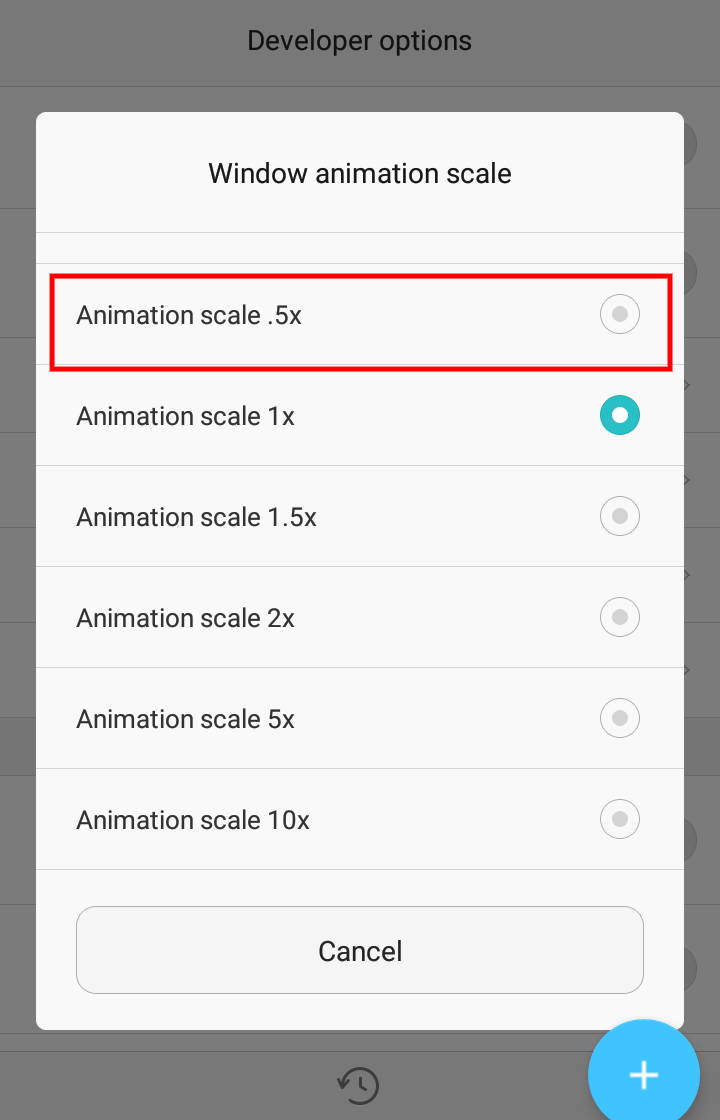
2.The animation scale. If you scroll down in the developer
options, you'll see,
Well really three options control Animation Scale which controls
how fast or slow the animations of the operating system are played.
What this means for
example, is when opening an app, closing an app, transitioning
through menus, all of that will be played
faster or slower.This makes the phone feel much more snappy, since everything
appears to respond faster.
You can also
turn off animations altogether, so there no delay.However sometimes with animations off, certain apps
can start to misbehave, so just be aware of
that.If for some reason you wanted, you
could make animations slower, but be careful when setting it to 10x, because it will take forever to disable
it again, since you have to wait really long.
There probably is not a person now who has not gotten an indispensable smartphone in their pocket.
However, there are not many people out there who know about all the amazing things these devices are capable of
Today, we would like to end this vicious circle and tell you about eight fascinating features of Android.
Setting #1
Control your smartphone with head movements
There are situations where you just have to use your gadget, but your hands are otherwise occupied, or it's just too cold outside to take your warm gloves off. However, there is a solution to this.
After installing a free app called EVA facial mouse, You will be able to control your Android device with movements of your head.
Sound impossible? Well, give it a try and see the result for yourself!
Setting #2
Text-to-speech
Not only can you read articles, but you can also listen to it if you have an Android device.
So, if you prefer to hear incoming information, rather than see it
Go to Settings
then Go To Accessibility
turn on the Text-to-speech output option
Setting #3
Smartphone remote control
Just go to Settings
Then Security
Then Device administrators
Now check the boxes next to the Android Device Manager
Remotely locate this device and Allow remote lock and erase
Now if you will lose your smartphone, you can locate it and block it without losing your data via a special website.
Setting #4
Turning on guest mode
If you'd like to give your phone to another person, yet keep your personal data confidential, use Guest mode.
Swipe down from the top with two fingers and touch the user icon on the upper right.
The Add guest icon will appear
You will be able to choose which actions the person handling your smartphone will be allowed to take.
Setting #5
Screen magnifier
People with poor eyesight often have no idea how much this feature can help them!
Just go to Settings
Then Go To Accessibility
Magnification gestures
Then you will be able to zoom in on any part of the display just by tapping it.
Setting #6
Hotspot mode
It's about internet access! You need not buy a separate 3G modem or a router to use the internet on different devices because your smartphone can do this easily!
Go to Settings
Tethering and portable hotspot
Turn on a portable WLAN hotspot
Setting #7
The easiest way to save your battery power
If you choose a black or simple dark background for your screen...
The automatic pixel highlighting will turn off
You will notice that your device keeps its charge for much longer
This feature isn't available for all Android devices yet, but it already implemented on most Samsung smartphones and tablets. Give it a try!
Setting #8
A secret game
Starting with Android 2.3 Gingerbread, Google puts a small secret present for users into all their devices. However, finding it may prove to be quite difficult.
Here are instructions on how to do it, despite the odds.
Hello, My name is Ahmed Muneer. I have a keen interest in information technology and all the factors regarding it. I'm a blogger since 2019. I am thankful to my team for helping us to make our blog awesome.